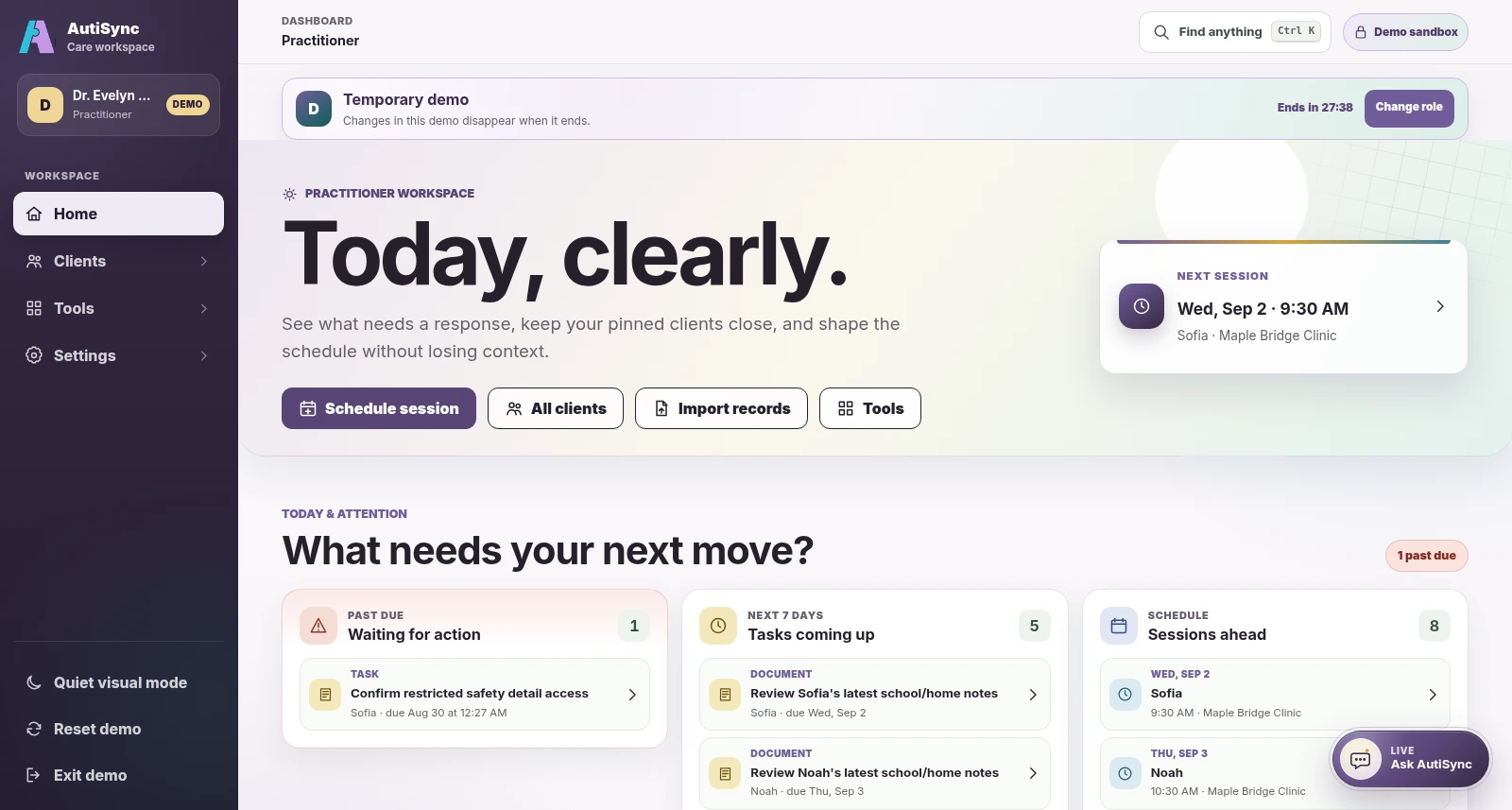
Current Practitioner demo dashboard · fictional demonstration data.
From preparation to follow-up
Keep the client’s context close.
See what families and colleagues have shared, prepare for each session, and keep follow-ups with the right client. Your clinical record stays in the system you already use.
Your working day
Four tools you will use every week.
Current Practitioner demo care-profile overview · fictional demonstration data.
Prepare
Prepare for the next session.
Open a client’s profile to review goals, forms, files, and earlier sessions. Your role and profile permissions decide what you can open.
✓See the person’s context before each session
✓Open only what you have been given access to
✓Keep follow-up work with the same client
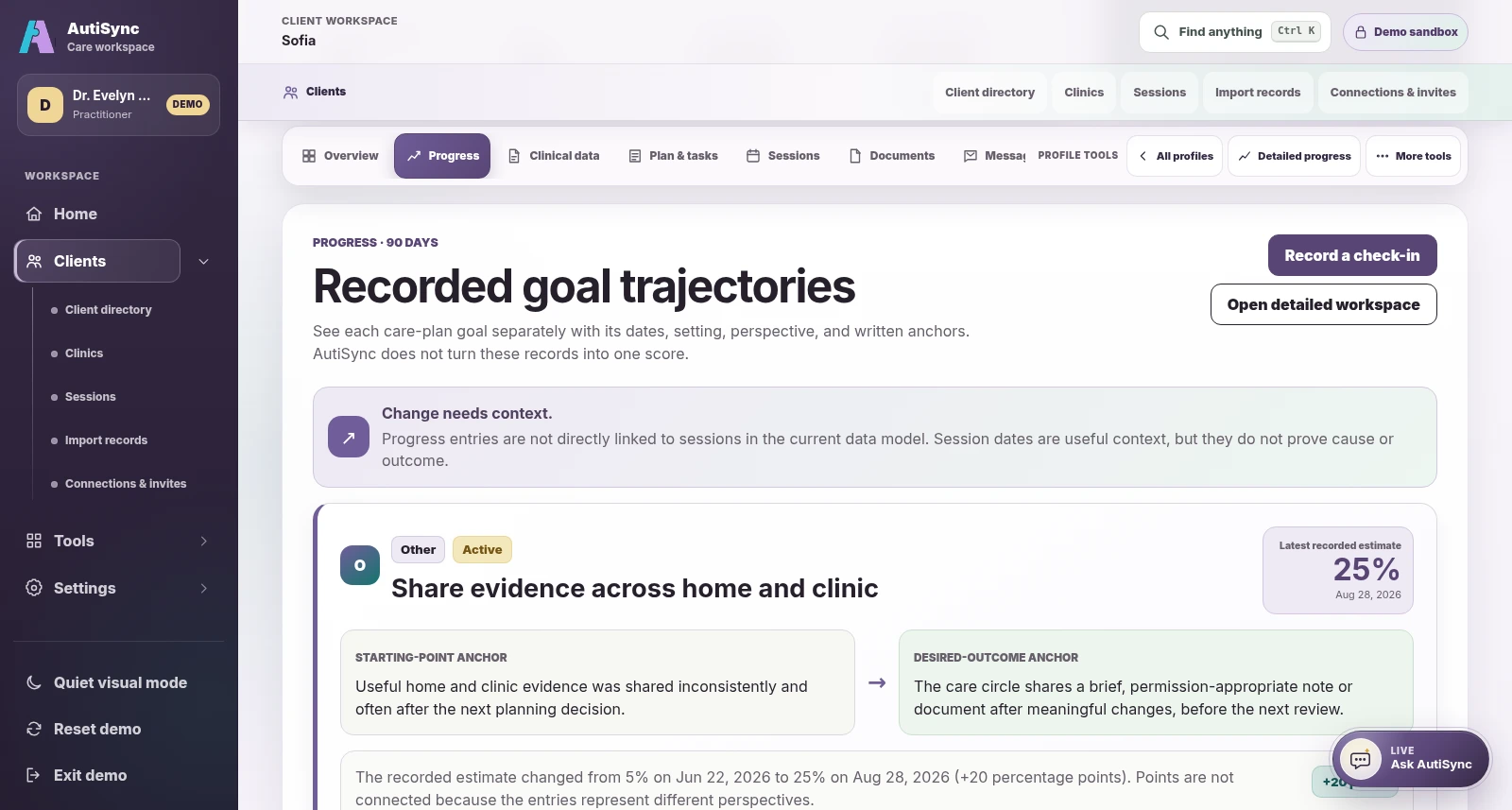
Current Practitioner demo progress perspective · fictional demonstration data.
Progress
Review progress with its context.
Compare observations and form answers with their dates and who added them. Progress shows what people recorded, and keeps each person’s point of view.
Current Practitioner demo assessment results and trends · fictional demonstration data.
Forms
Send a form. Read every answer.
Send questionnaires to the people on a client’s team. Filter the answers by client, form, person, and date, and read exactly what each person answered.
Available todayAsk AutiSyncGuidance to review, with every decision left to you.
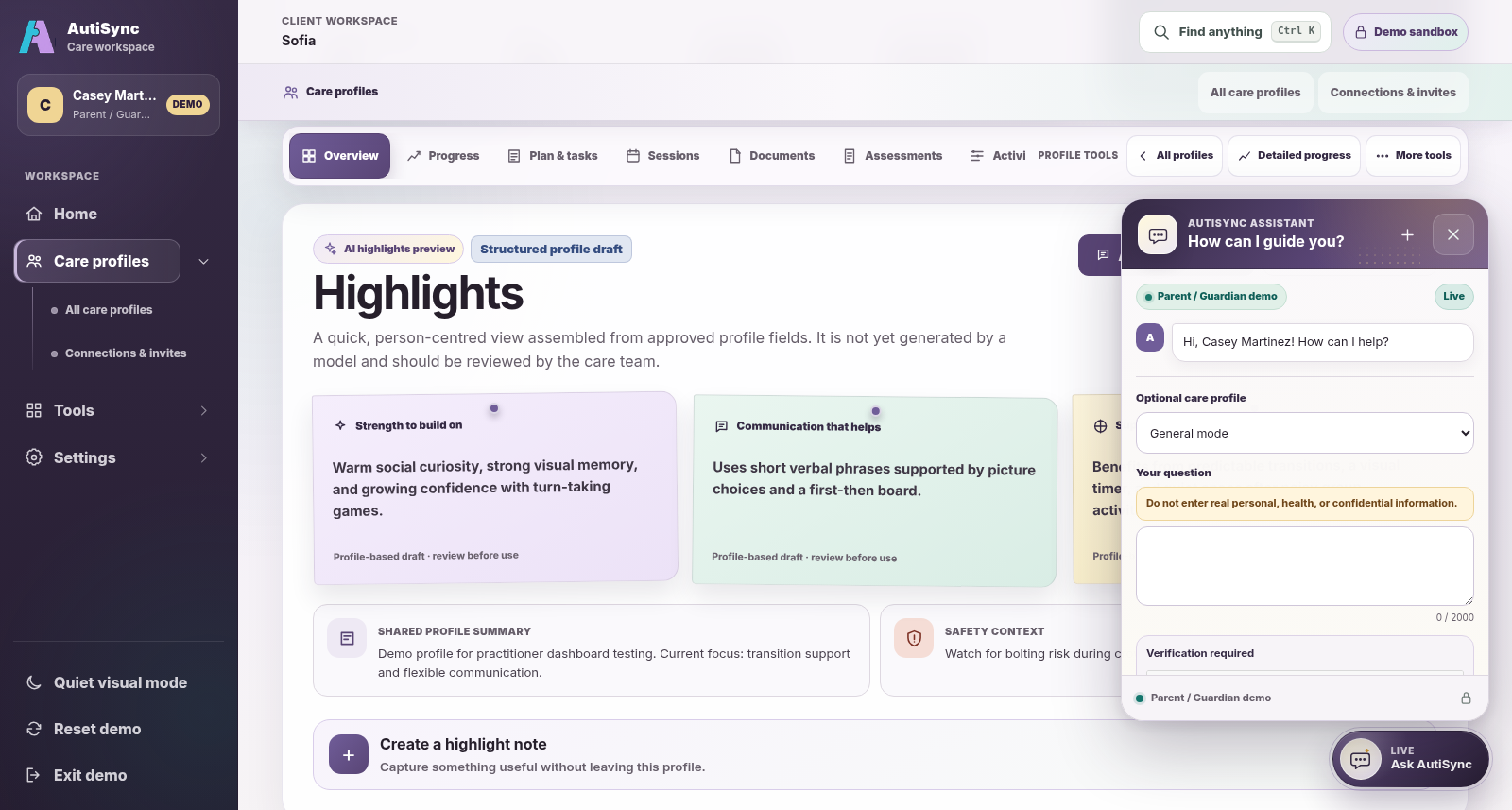
Current Ask AutiSync panel in the eligible Parent / Guardian demo perspective, open in General mode with no prompt or reply shown · fictional demonstration data. The profile Highlights shown here are assembled from approved fields and are not AI-generated.
Available today
Ask AutiSync
Ask for guidance as you work.
Anyone can ask a general autism-support question. Where this is turned on, signed-in practitioners can add basic details from one client’s profile, if they have permission to view notes on it. The assistant never opens the files stored in a profile. Use your professional judgment on every answer.
Auti AI Device
Record in the room. Review on AutiSync.
For clinics with an Auti AI Device. Follow one session from the room to the people who need it.
Step 1 In the room
Record
Sign in on the device with your AutiSync e-mail and password. Choose your client, then select Start session: it records until you select End session. Take photos if you like during the session.
Not in the room? Start and watch a recording online from Auti Device on autisync.ca.
On the device · example client.Online at autisync.ca · example picture.
Step 2 By itself
Upload
The video, and any photos or report you added, go to AutiSync on their own. Nobody has to copy files.
They leave the device only once they are safely stored on autisync.ca.
Step 3 On autisync.ca
Review
Select Recorded sessions in the menu and open the session. You see every file from it: the video, and any photos or report. If you added a voice comment after the session, it plays right on the page.
Step 4 With the right people
Share
Select Download full session to get every file at once, or Download session summary for a summary you can print.
The clinic owner decides who can open recordings. A session opens for the clinic owner, the person who recorded it, the people the clinic owner allows, and the AutiSync administrator.
AutiSync supports care coordination alongside your EHR or clinical record. It does not replace that system.
01
EHR / clinical record
Provider record
Your clinical notes and internal processes stay in the system your organization chose.
02
AutiSync
Care coordination
Shared updates, sessions, recordings, progress, and follow-ups stay organized around each client.
Questions from clinics
Before you start.
Short answers. Select a question to open it.
How does a clinic get started?
Select Request an account and choose Practitioner as your role. Open the link we e-mail you. Then, on your dashboard, select Create your clinic. Whoever creates the clinic becomes its owner and can add clients and invite the team.
Does AutiSync replace our EHR?
No. Your clinical notes stay in the system you already use. AutiSync keeps the shared work around each client: updates, forms, sessions, recordings, and follow-ups.
Do we need the Auti AI Device?
No. Everything else in AutiSync works without it. The device adds session recording for clinics that have one.
Who can use the device?
The clinic owner, and the people the clinic owner or AutiSync adds on the device’s Who can use this device page. They sign in with their own AutiSync e-mail and password. One practitioner uses the device at a time.
Who can open a recorded session?
The clinic owner, the person who recorded it, the people the clinic owner allows, and the AutiSync administrator. Families and other team members cannot open it unless the clinic owner allows them.
What does our IT team need to know?
The device needs power and the internet, by Wi-Fi or a network cable. Your clinic network must let it reach the internet; your IT team can check this (AutiSync support uses port 2222).